> For the complete documentation index, see [llms.txt](https://kb.mago.io/llms.txt). Markdown versions of documentation pages are available by appending `.md` to page URLs; this page is available as [Markdown](https://kb.mago.io/mago-essential/setup-guide/activation-and-first-configuration/manual-activation-and-first-configuration-up-to-version-6.x.md).
# Manual Activation and First Configuration (up to version 6.x)
Activate and configure Mago Essential directly on-screen using a keyboard and mouse for step-by-step setup.
{% hint style="danger" %}
Manual activation is available for all **Mago versions up to 6.x**. Beginning with version 7.x, manual activation is no longer supported and only [Online activation](/mago-essential/setup-guide/activation-and-first-configuration/online-activation-and-first-configuration-version-7.0+.md) can be used.
{% endhint %}
## Language selection
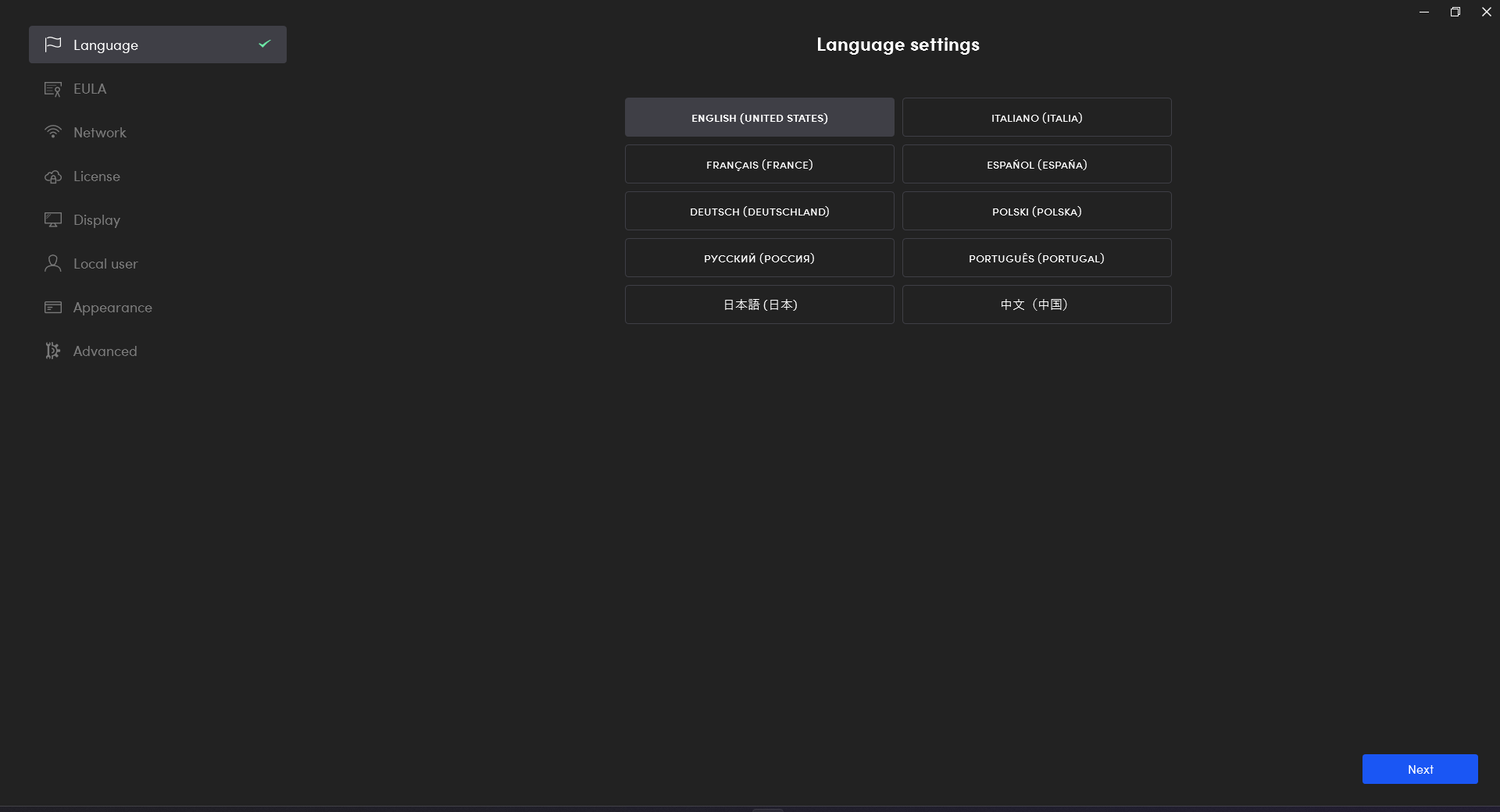
Choose your preferred language. Press Next.
Language selection
## EULA
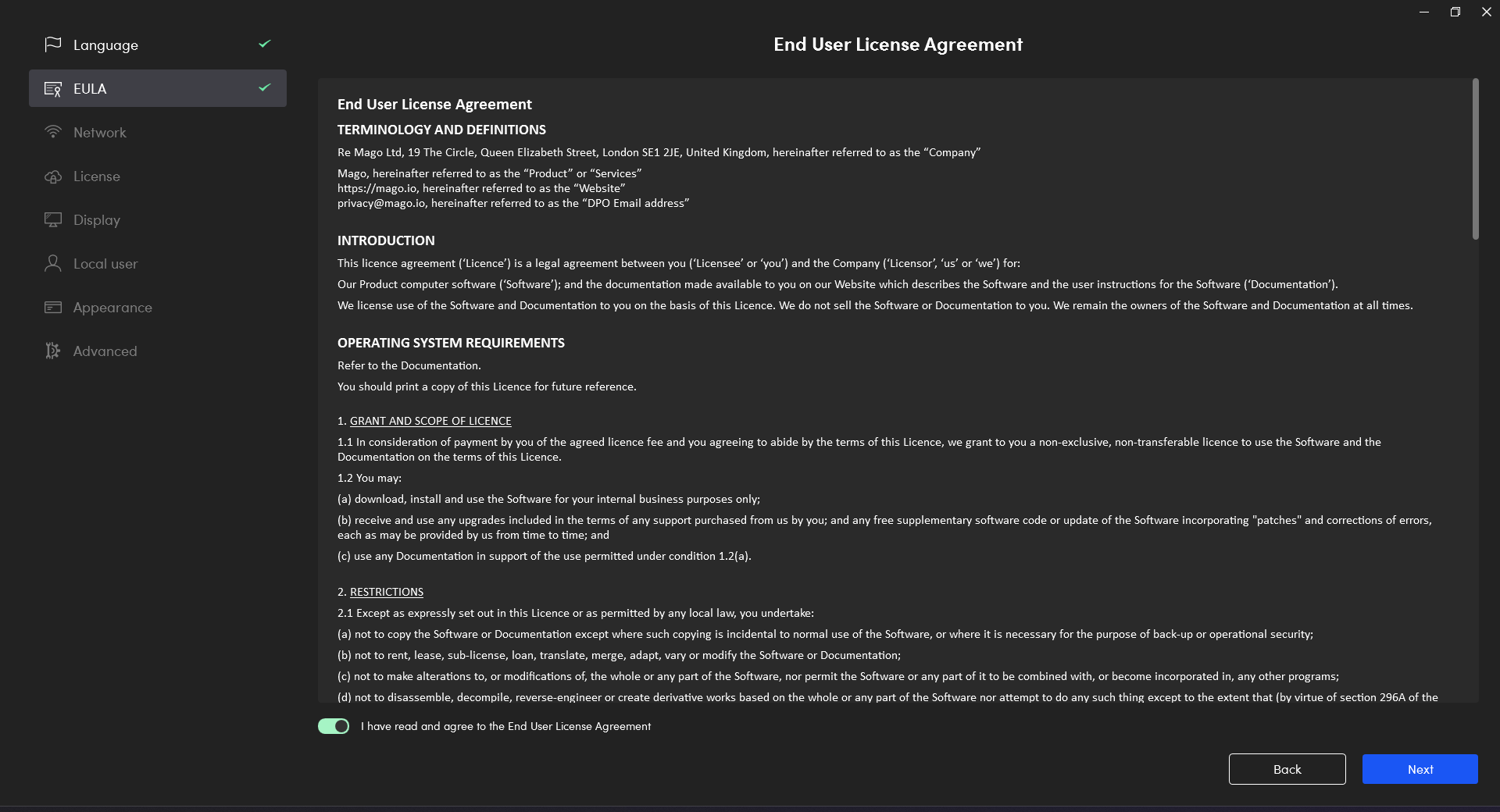
Read and accept the EULA. Press Next.
EULA
## Network settings
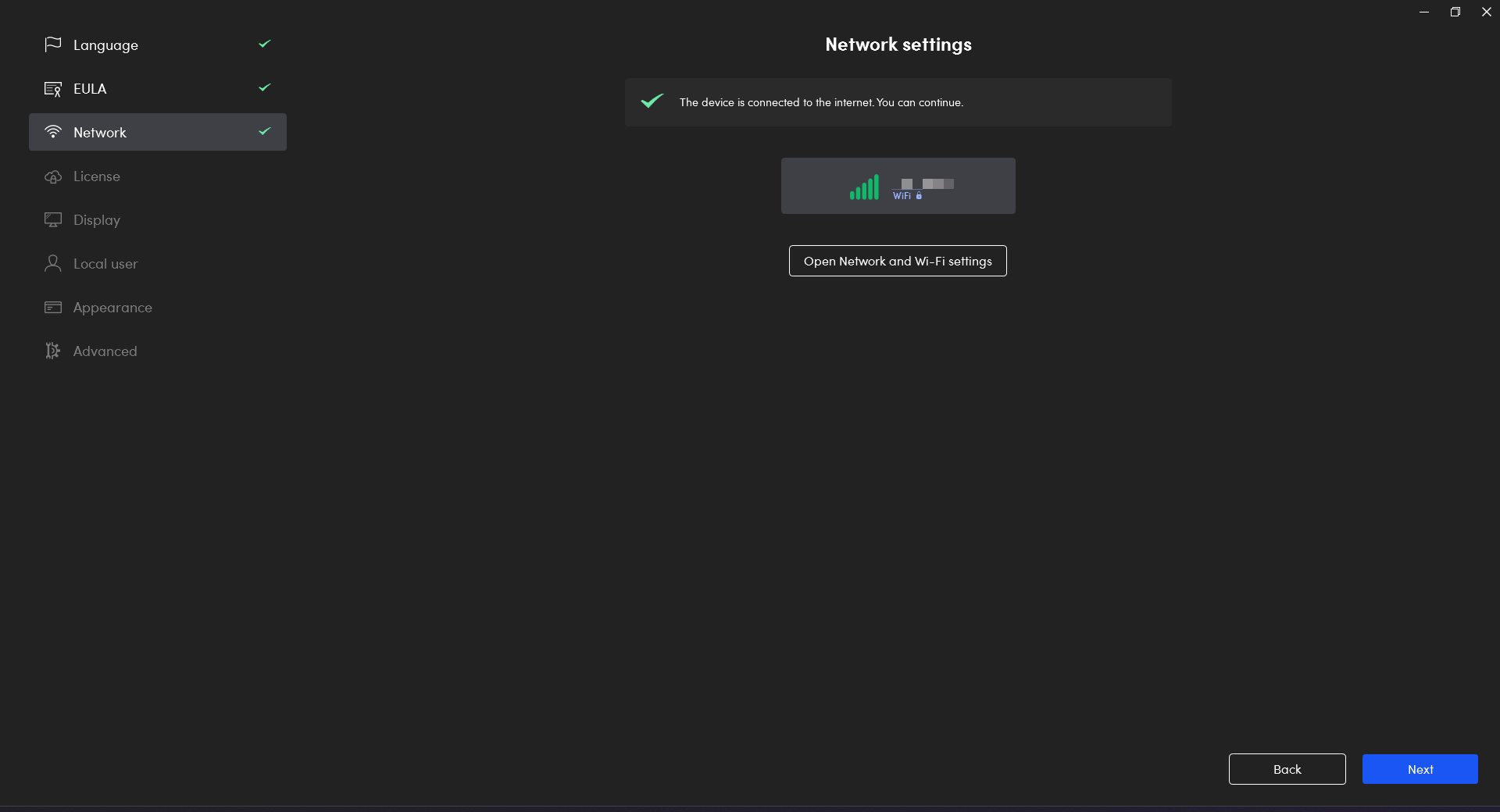
Make sure an Internet connection is available. If not, check the Ethernet cable / interface or set up a WiFi connection via the Windows network settings. Press Next.
Network settings
## License activation
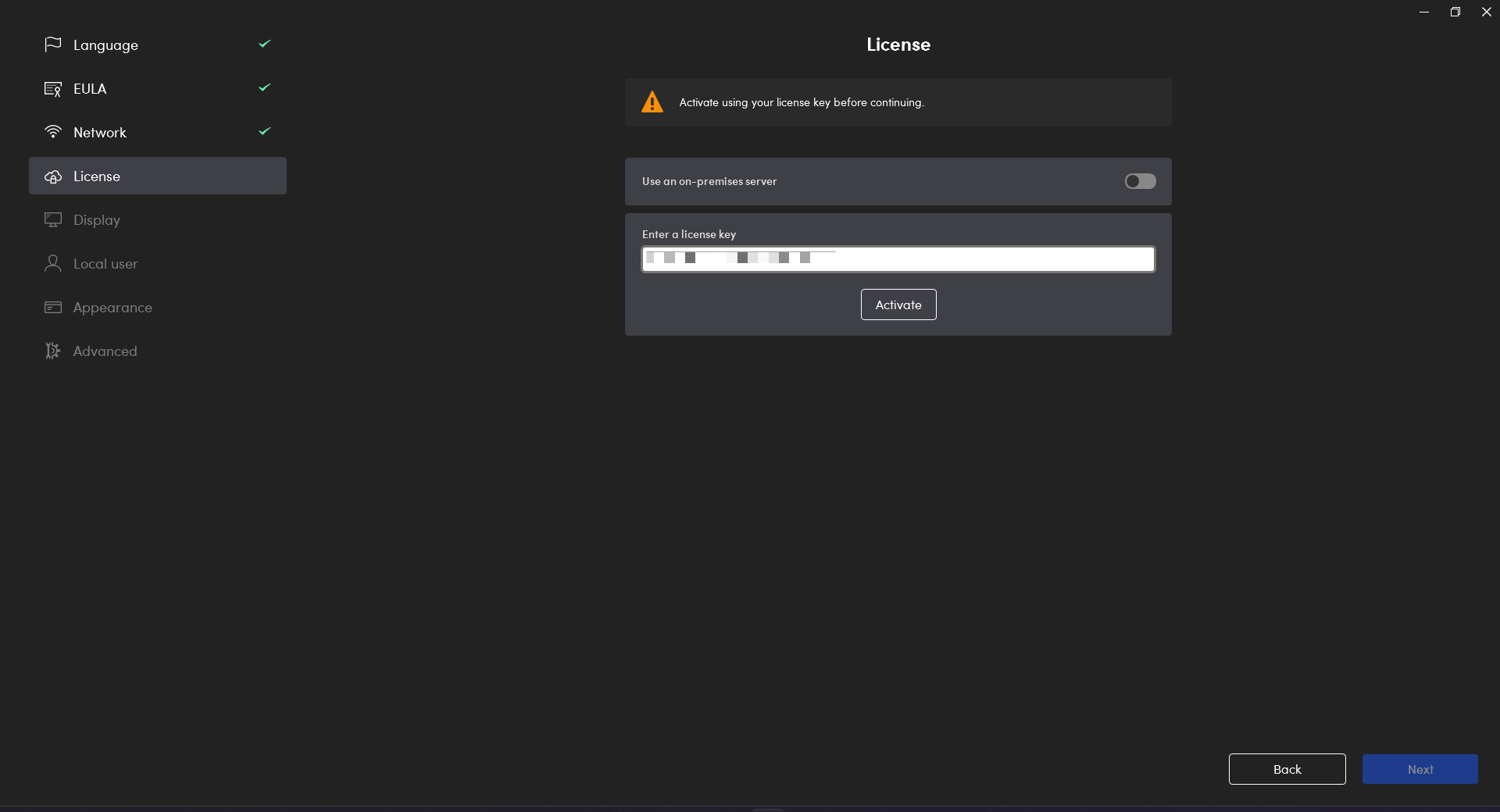
Insert your Mago Essential software license key and press "Activate". If the license activates correctly, press Next to continue. Otherwise, double check your license key, ask your reseller or ask for support here: [Support](/support/mago-helpdesk-and-support.md)
License activation
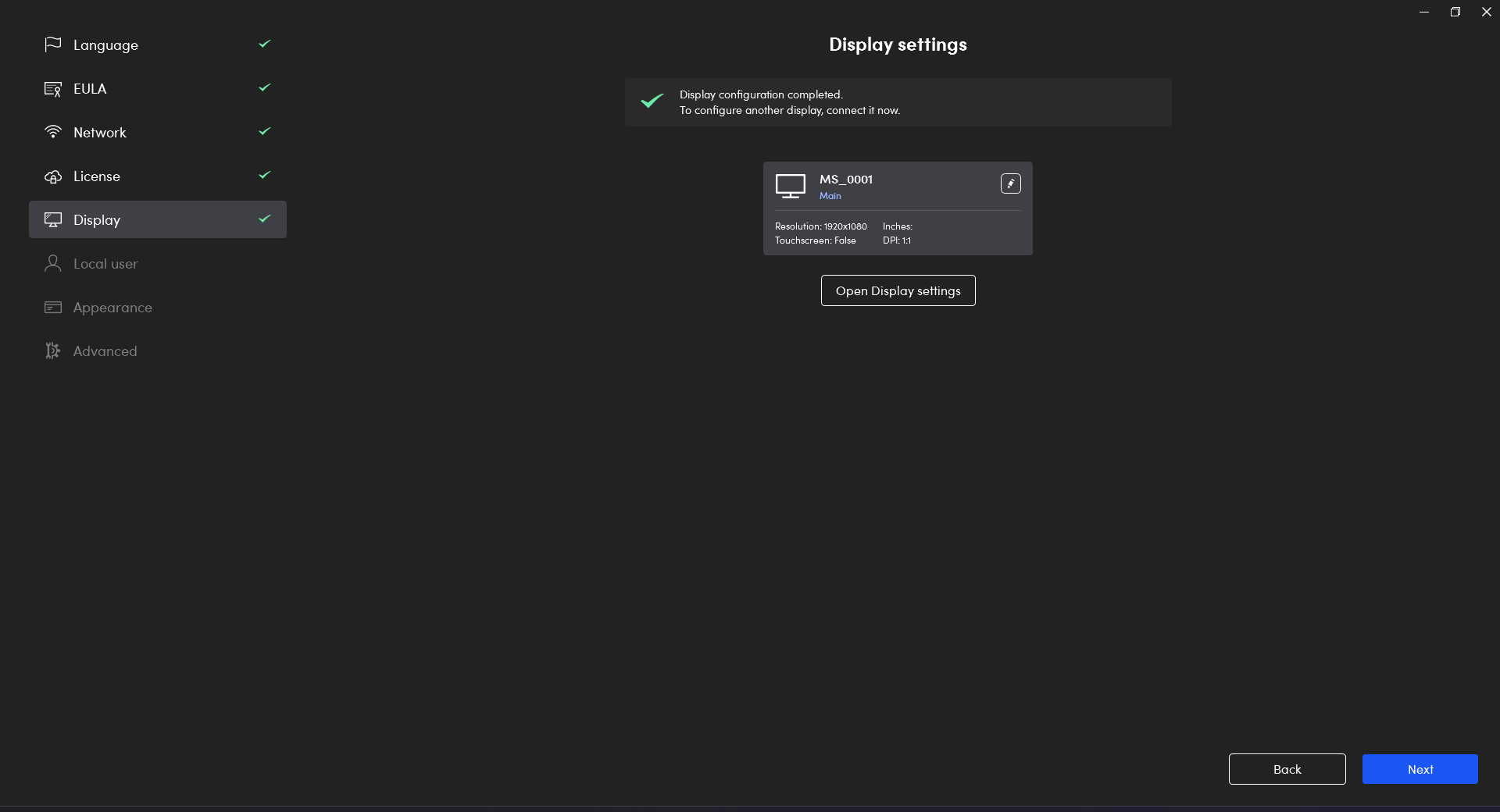
## Display settings
Double check the display configuration here. If your display is passive, check the "Passive display mode" option. If you need to make changes, tap "Open display settings" to access Windows display settings. Press Next.
Display settings
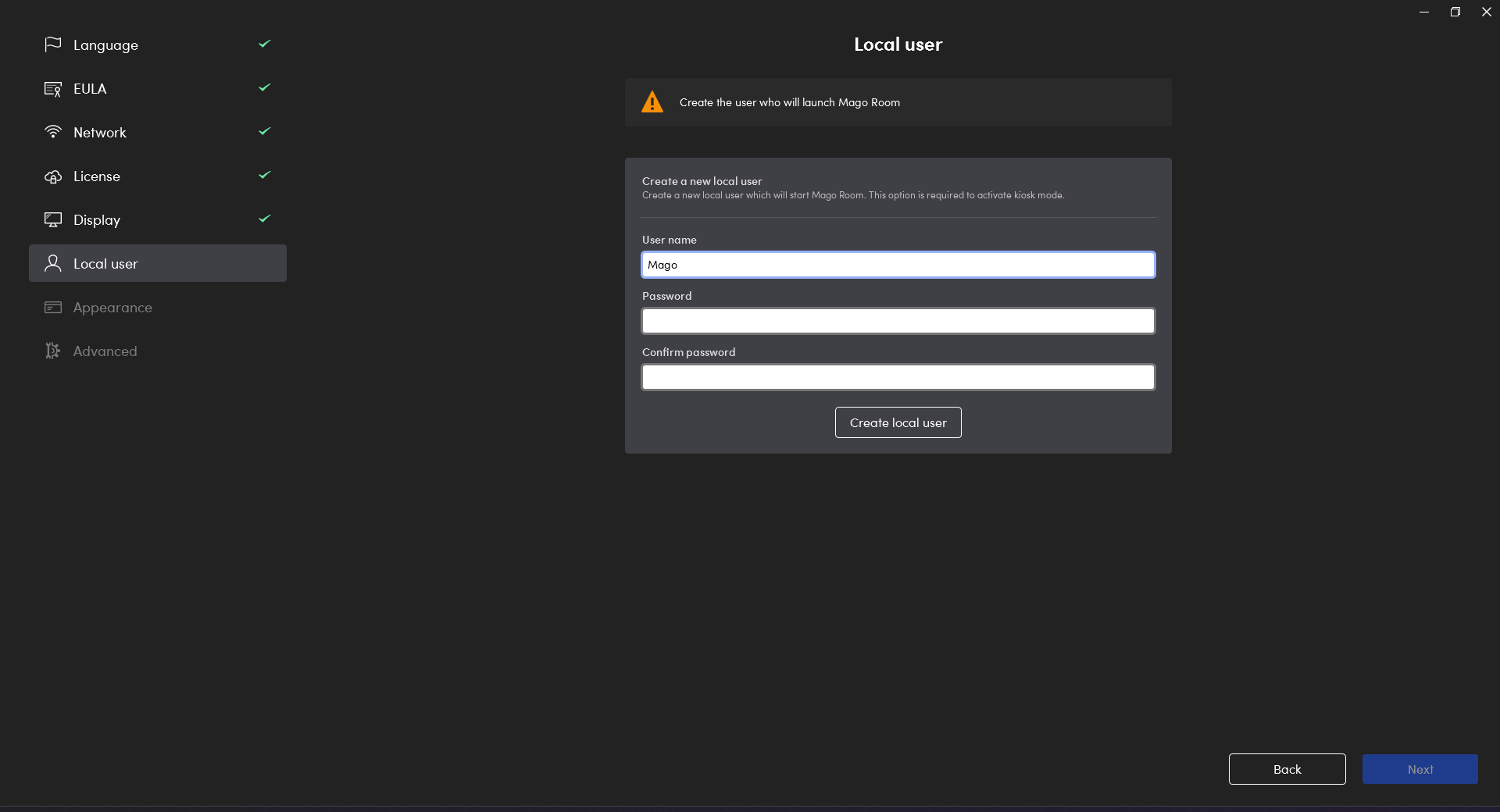
## Local User
Mago Essential requires a dedicated local user to run. In this step, you can choose a name and password (optional) for the Mago user. The default values are user **MagoRoom** with no password.
Whatever username and password is chosen, Mago Essential **will automatically log in to that user the next time you restart**. You will never have to manually enter your password to log in when you start the device.
{% hint style="success" %}
The dedicated local user allows you to maximize security, thanks to the Least-privileged users (LPUs) settings and the Kiosk mode which is automatically set during the first configuration. Kiosk mode inhibits users from accessing the file system, the advanced Windows functions and shortcuts, only allowing access to the Mago Room Essential application.
{% endhint %}
Local User
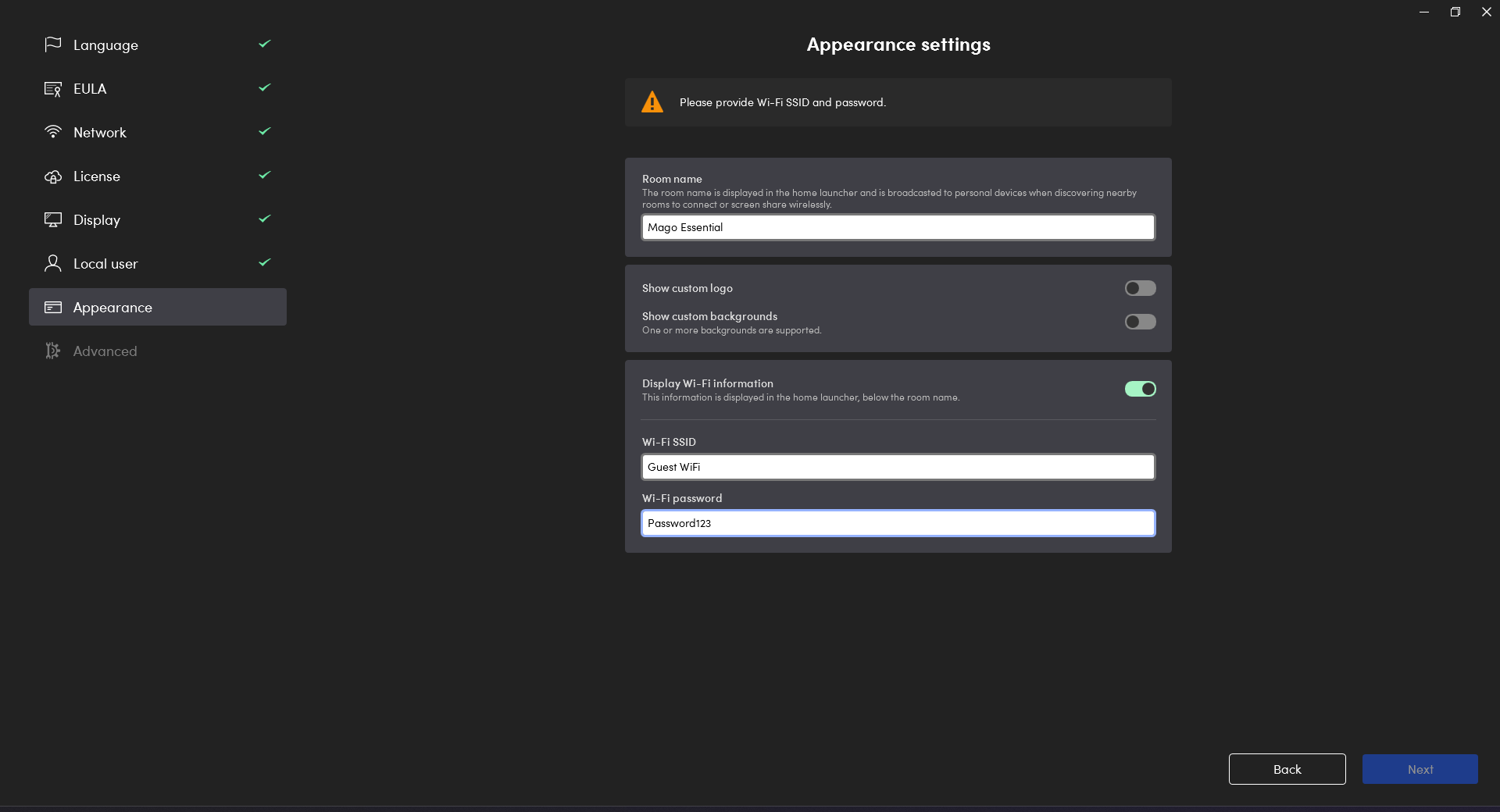
## Appearance settings
In this step, you can:
* Set a display name for this device.
{% hint style="info" %}
The display name appears when users screen share via Miracast, AirPlay, Google Cast and when they connect via the Mago mobile app.
{% endhint %}
* Set a custom logo and one or more custom backgrounds.
* Set the WiFi information to be displayed for users and guests.
{% hint style="warning" %}
A properly set WiFi is required for AirPlay and Google Cast to work. See [Broken mention](broken://pages/fMuhV3iZvvhQGSlNL5BU) for more details.
{% endhint %}
Appearance
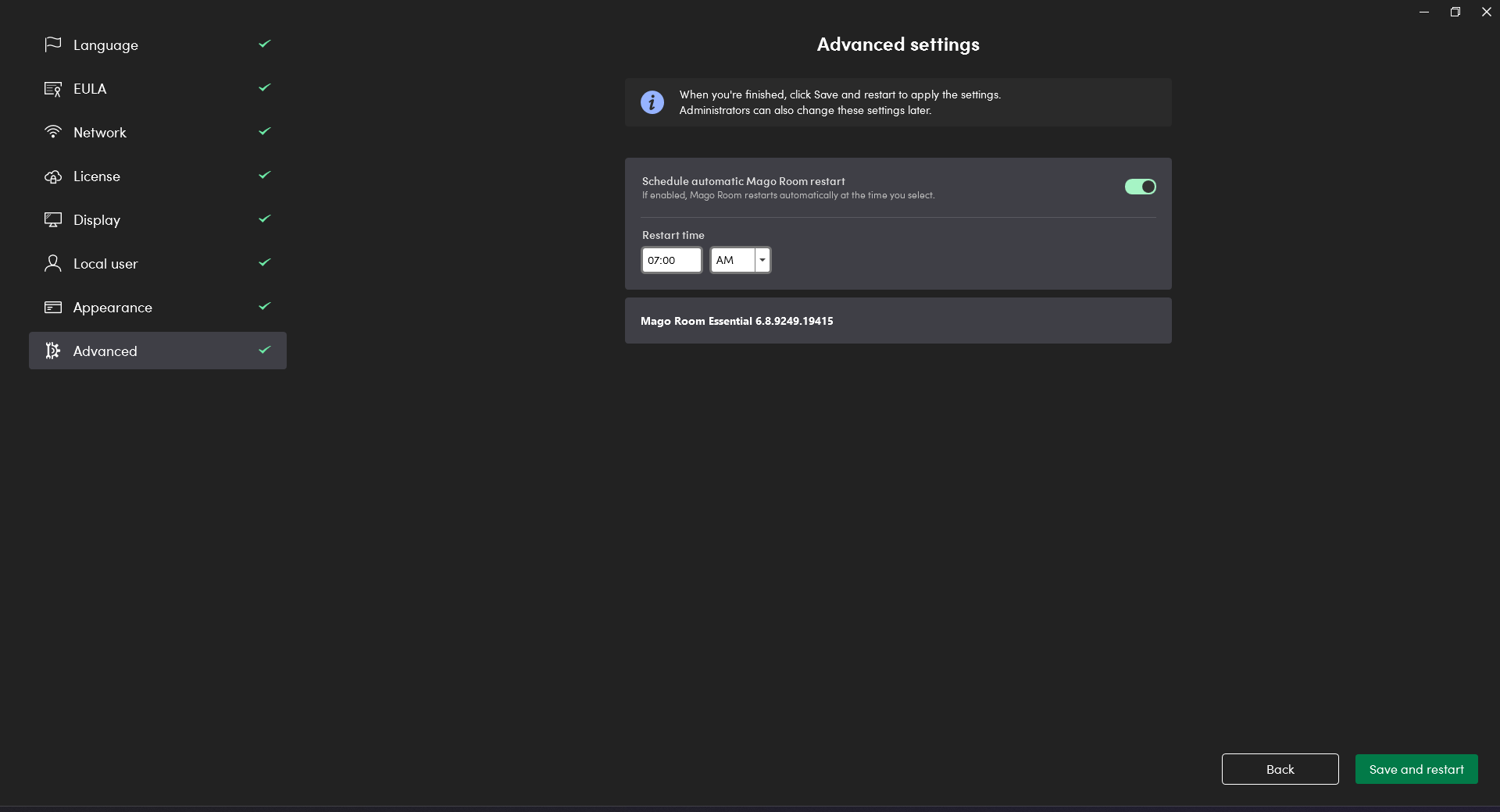
## Advanced settings
In this step, you can setup the automatic daily restart of Mago Essential.
## Save and restart
After completing the wizard, you can Save and restart. Mago Essential will automatically log into the newly created local user and run the software.